

How to Resize Photo, Signature, and Documents for Online Job Applications
One of the most common reasons online government job applications (such as SSC, UPSC, IBPS, and Railways) are rejected or get stuck is due to incorrectly formatted photos and signatures. Every recruitment portal has its own set of rigid rules regarding dimensions, file format, and file size limits. If your files do not fit these specific limits, the online portal will throw error messages, preventing you from submitting your form before the deadline. This comprehensive guide details the exact specifications required by major boards and explains how to resize your documents easily using free tools on desktop and mobile.
1. Standard File Specifications for Major Recruitment Portals
Before resizing, you must know the common formats required by different government websites. Refer to this general specifications table:
| Document Type | Standard Dimension (Width x Height) | File Size Range | Permitted Format |
|---|---|---|---|
| Passport Photograph | 3.5 cm x 4.5 cm (or 350 x 450 Pixels) | 20 KB to 50 KB | JPG / JPEG Only |
| Candidate Signature | 4.0 cm x 2.0 cm (or 400 x 200 Pixels) | 10 KB to 20 KB | JPG / JPEG Only |
| Left Thumb Impression | 3.0 cm x 3.0 cm (or 300 x 300 Pixels) | 10 KB to 50 KB | JPG / JPEG Only |
| Certificates (10th/12th/Caste) | Standard A4 Size Page | 100 KB to 300 KB | PDF / JPEG |
2. Guidelines for Capturing acceptable Photos and Signatures
Simply resizing a bad image will not prevent form rejection. Follow these photographic standards:
- Photo Background: The background must be light-colored, preferably plain white or light blue. Avoid dark, decorated, or outdoor backgrounds.
- Face Position: Your face must cover at least 70-80% of the photo frame. Look directly at the camera with a neutral expression. Both ears must be clearly visible. Do not wear caps, hats, or dark sunglasses.
- Signature Guidelines: Sign with a black ink pen on a clean sheet of white paper. Avoid using gel pens or pencils, as they do not scan clearly. Sign in running handwriting; do not write your name in all capital letters, as this is rejected by most boards.
3. Step-by-Step Guide to Resizing on Windows PC (Using Paint)
Windows has a built-in tool called Paint which is perfect for cropping and resizing files without installing external applications:
- Right-click on your image file and select Open With > Paint.
- Use the **Select** tool to crop out any extra white space around your signature or photo.
- Click the **Resize** button in the Home tab. A dialog box will appear.
- Select the **Pixels** option. Uncheck the box that says **”Maintain aspect ratio”** to enter custom dimensions.
- Enter the required Horizontal (Width) and Vertical (Height) values (e.g., 350 for horizontal and 450 for vertical for photos).
- Click **OK** and go to **File > Save As > JPEG picture**. Check the file properties to verify if the file size lies within the limits.
4. Step-by-Step Guide Using Free Online Resizer Websites
If you are applying from a mobile phone or want a quicker method, use free resizing websites like **iloveimg.com**, **resizeimage.net**, or **simpleimageresizer.com**:
- Open your browser and navigate to any reliable free image resizer website.
- Upload your photo or scanned signature.
- Go to the **Resize** section. Enter the custom dimensions in pixels or select percentages to reduce overall size.
- Use the **Compression/Quality** slider. Lowering the image quality slightly (e.g., to 85%) will drastically reduce the file size in KB without noticeably reducing image clarity.
- Download the resized image and verify its dimensions before uploading it to the application portal.
5. Mobile Apps for Resizing Documents
If you do not have access to a computer, you can download specialized mobile applications from the Google Play Store or Apple App Store. Apps such as **”Photo & Picture Resizer”** or **”Compress Image Size in KB & MB”** allow you to input your desired file size directly (e.g., 40 KB) and the app will automatically compress the image to fit that target size while maintaining acceptable quality. Always make sure to preview the compressed image to ensure the text or face remains legible.
Frequently Asked Questions (FAQs)
Q1. Why does my signature get rejected even if the file size is correct?
If you write your signature in CAPITAL letters, use red ink, or sign on ruled/lined paper, it will be rejected. Always sign in running handwriting on plain white paper using black/blue ink.
Q2. How can I merge my photo and signature into a single file?
Some boards require a single file. You can open a blank template in Paint, paste your photo at the top, paste the signature below it, and save the merged file as a single JPEG.
Q3. Can I use a selfie for my online application form?
No, selfies are strictly prohibited. Forms containing selfies or cropped group photos are automatically rejected by recruitment boards.
Q4. How do I convert my JPEG certificates into a PDF file?
You can use free online tools like “ilovepdf.com” to convert JPEG images of your mark sheets into a single compressed PDF file under 300 KB.
Q5. What is hotlinking and why should I avoid it?
Hotlinking refers to displaying an image on your site by linking directly to another website’s image URL. This is bad because if the original website changes the URL, the image on your page will break.
Q6. How old can the passport photo be?
Most boards require a recent photograph taken within the last 3 months. Using very old photos can lead to mismatches during the biometric verification stage.
Q7. What resolution should I use when scanning my signature?
A scanning resolution of 150 to 200 DPI (Dots Per Inch) is ideal for signatures and photos, as it balances clarity with file size.
Q8. Can I upload PNG files if JPEG is specified?
No, if the portal specifies JPG/JPEG, uploading PNG files will result in system errors or upload failure.
Q9. What should I do if my photo size is still above 50KB after resizing?
Use an online image compressor to compress the file quality slightly. This will reduce the file size in KB without changing the pixel dimensions.
Q10. Is a digital signature accepted on online forms?
No, you must sign physically on paper, scan or take a photo of it, and upload that image. Digital signatures or typed text are not accepted.
📊 Expert Cutoff Analysis & Preparation Strategy for Sarkari Online Application Form Photo & Signature Resize Guide
Based on our editorial analysis of previous recruitment cycles and increasing competition trends, candidates must aim for safe target scores rather than merely clearing the minimum qualifying benchmark:
- Expected Safe Target: General/UR candidates should target 78%–84% marks in the written examination, while OBC/EWS aspirants should aim for 74%–80%.
- Focus Areas: Prioritize high-scoring sections such as General Intelligence & Reasoning and Quantitative Aptitude. Daily revision of static General Awareness and current affairs from the past 6 months is essential.
- Time Management: Practice with full-length sectional and mock tests strictly in timed exam conditions to improve accuracy and eliminate negative marking errors.
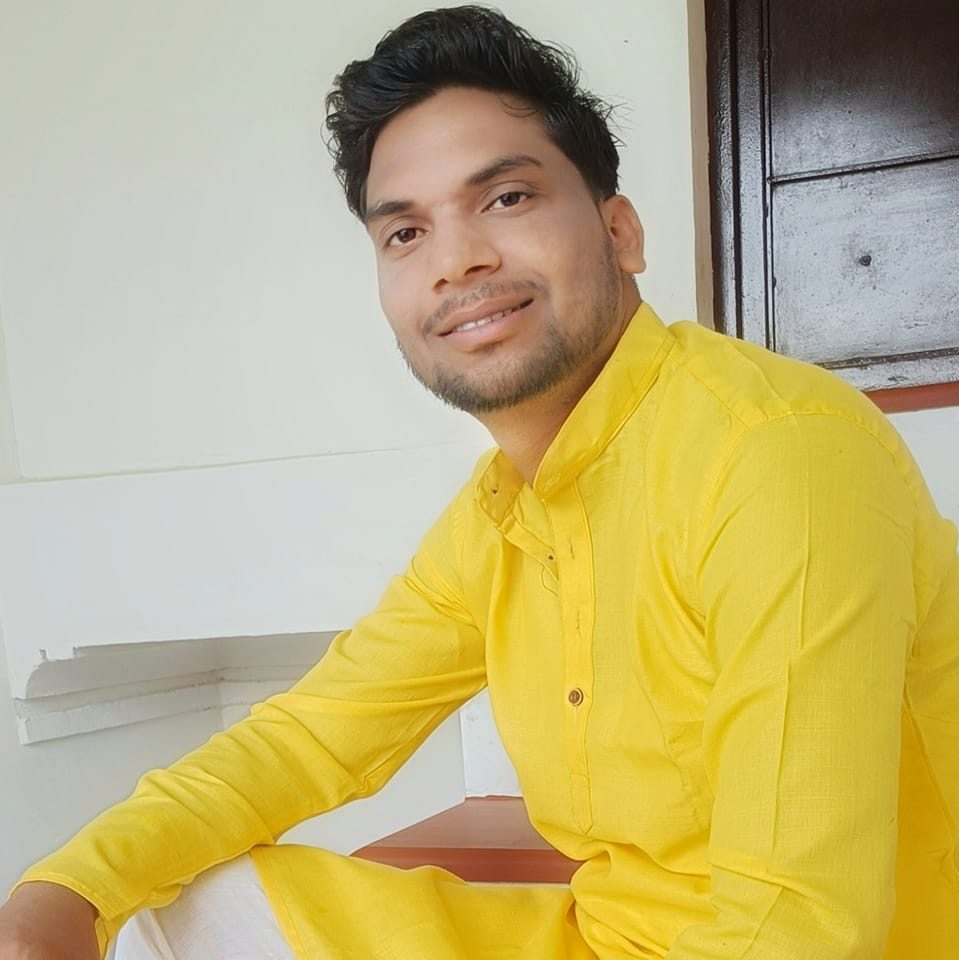
Ram Avtar is the Founder and Lead Career Analyst at Govt Results Alert. With over 6 years of experience analyzing Government Recruitment Notifications, SSC, Banking, and Railway examination patterns, he leads our fact-checking team to deliver authentic, timely, and verified job alerts directly from official government gazettes.